
Multi-Room Bookings
Step 1
Click “Add Room” button to add multiple rooms

Step 2
Click “Save” button when you are ready to proceed.

Step 3
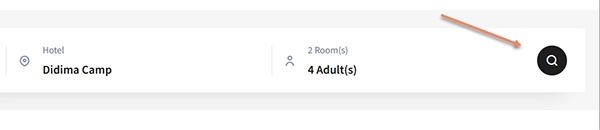
Click “Search Icon” which will populate “Room Type List”
Step 4
Wait for “Room Type List” to load

Step 5
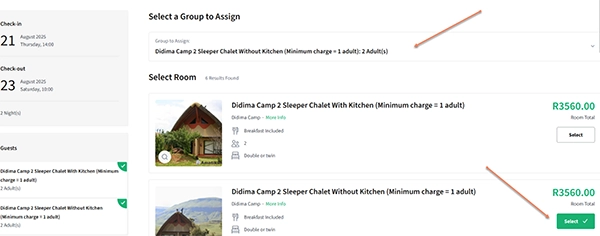
Click “Select” button for room 1

Step 6
Click “Group To Assign” drop down box and ensure selected room type is assigned

Step 7
Repeat this process until all your room types are assigned
Step 8
Once you have assigned all your rooms click “Next” button on the bottom right hand corner of “Room Type List” to enter your contact details
